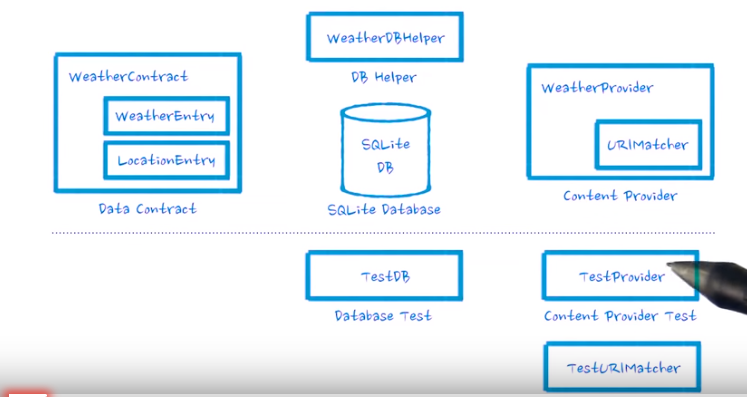
big picture
SQL part
1.Create a Contract
it describ how the data is accessed.
for example, we have these two table in our database,

So,first we cretae a contract class call WeatherContract
Itis becasue we have two table WEATHER and LOCATION,so we create two innear class,call LocationEntry and WeatherEntry
The two innear class implement BaseColumns
Now,add the variable to the two innear class.
For example, because the Location table has a column CITY_NAME,we add vairable :
public static final String COLUMN_CITY_NAME = "city_name";
Finished contract:
package com.example.android.sunshine.app.data;
/**
* Defines table and column names for the weather database.
*/
public class WeatherContract {
/* Inner class that defines the table contents of the location table */
public static final class LocationEntry implements BaseColumns {
//SQLite part
// Table name
public static final String TABLE_NAME = "location";
// The location setting string is what will be sent to openweathermap
// as the location query.
public static final String COLUMN_LOCATION_SETTING = "location_setting";
// Human readable location string, provided by the API. Because for styling,
// "Mountain View" is more recognizable than 94043.
public static final String COLUMN_CITY_NAME = "city_name";
// In order to uniquely pinpoint the location on the map when we launch the
// map intent, we store the latitude and longitude as returned by openweathermap.
public static final String COLUMN_COORD_LAT = "coord_lat";
public static final String COLUMN_COORD_LONG = "coord_long";
//SQLite part
}
/* Inner class that defines the table contents of the weather table */
public static final class WeatherEntry implements BaseColumns {
public static final String TABLE_NAME = "weather";
//SQLite part
// Column with the foreign key into the location table.
public static final String COLUMN_LOC_KEY = "location_id";
// Date, stored as long in milliseconds since the epoch
public static final String COLUMN_DATE = "date";
// Weather id as returned by API, to identify the icon to be used
public static final String COLUMN_WEATHER_ID = "weather_id";
// Short description and long description of the weather, as provided by API.
// e.g "clear" vs "sky is clear".
public static final String COLUMN_SHORT_DESC = "short_desc";
// Min and max temperatures for the day (stored as floats)
public static final String COLUMN_MIN_TEMP = "min";
public static final String COLUMN_MAX_TEMP = "max";
// Humidity is stored as a float representing percentage
public static final String COLUMN_HUMIDITY = "humidity";
// Humidity is stored as a float representing percentage
public static final String COLUMN_PRESSURE = "pressure";
// Windspeed is stored as a float representing windspeed mph
public static final String COLUMN_WIND_SPEED = "wind";
// Degrees are meteorological degrees (e.g, 0 is north, 180 is south). Stored as floats.
public static final String COLUMN_DEGREES = "degrees";
}
}
now ,the contract is finish
2.Create SQLiteOpenHelper
A helper class to manage database creation and version management.
You create a subclass implementing onCreate(SQLiteDatabase), onUpgrade(SQLiteDatabase, int, int) and optionallyonOpen(SQLiteDatabase), and this class takes care of opening the database if it exists, creating it if it does not, and upgrading it as necessary. Transactions are used to make sure the database is always in a sensible state.
First,we creat a class
WeatherDbHelper extends SQLiteOpenHelper
and override two method
1.onCreate
2.onUpgrade
In onCreate, we need to create the table in the database.
in OnUPgrade, we neeed to handle the database up grade metter.We normally delete the table normally.
Finished code:
/*
* Copyright (C) 2014 The Android Open Source Project
*
* Licensed under the Apache License, Version 2.0 (the "License");
* you may not use this file except in compliance with the License.
* You may obtain a copy of the License at
*
* http://www.apache.org/licenses/LICENSE-2.0
*
* Unless required by applicable law or agreed to in writing, software
* distributed under the License is distributed on an "AS IS" BASIS,
* WITHOUT WARRANTIES OR CONDITIONS OF ANY KIND, either express or implied.
* See the License for the specific language governing permissions and
* limitations under the License.
*/
package com.example.android.sunshine.app.data;
import android.content.Context;
import android.database.sqlite.SQLiteDatabase;
import android.database.sqlite.SQLiteOpenHelper;
import com.example.android.sunshine.app.data.WeatherContract.LocationEntry;
import com.example.android.sunshine.app.data.WeatherContract.WeatherEntry;
/**
* Manages a local database for weather data.
*/
public class WeatherDbHelper extends SQLiteOpenHelper {
// If you change the database schema, you must increment the database version.
private static final int DATABASE_VERSION = 2;
static final String DATABASE_NAME = "weather.db";
public WeatherDbHelper(Context context) {
super(context, DATABASE_NAME, null, DATABASE_VERSION);
}
@Override
public void onCreate(SQLiteDatabase sqLiteDatabase) {
// Create a table to hold locations. A location consists of the string supplied in the
// location setting, the city name, and the latitude and longitude
final String SQL_CREATE_LOCATION_TABLE = "CREATE TABLE " + LocationEntry.TABLE_NAME + " (" +
LocationEntry._ID + " INTEGER PRIMARY KEY," +
LocationEntry.COLUMN_LOCATION_SETTING + " TEXT UNIQUE NOT NULL, " +
LocationEntry.COLUMN_CITY_NAME + " TEXT NOT NULL, " +
LocationEntry.COLUMN_COORD_LAT + " REAL NOT NULL, " +
LocationEntry.COLUMN_COORD_LONG + " REAL NOT NULL " +
" );";
final String SQL_CREATE_WEATHER_TABLE = "CREATE TABLE " + WeatherEntry.TABLE_NAME + " (" +
// Why AutoIncrement here, and not above?
// Unique keys will be auto-generated in either case. But for weather
// forecasting, it's reasonable to assume the user will want information
// for a certain date and all dates *following*, so the forecast data
// should be sorted accordingly.
WeatherEntry._ID + " INTEGER PRIMARY KEY AUTOINCREMENT," +
// the ID of the location entry associated with this weather data
WeatherEntry.COLUMN_LOC_KEY + " INTEGER NOT NULL, " +
WeatherEntry.COLUMN_DATE + " INTEGER NOT NULL, " +
WeatherEntry.COLUMN_SHORT_DESC + " TEXT NOT NULL, " +
WeatherEntry.COLUMN_WEATHER_ID + " INTEGER NOT NULL," +
WeatherEntry.COLUMN_MIN_TEMP + " REAL NOT NULL, " +
WeatherEntry.COLUMN_MAX_TEMP + " REAL NOT NULL, " +
WeatherEntry.COLUMN_HUMIDITY + " REAL NOT NULL, " +
WeatherEntry.COLUMN_PRESSURE + " REAL NOT NULL, " +
WeatherEntry.COLUMN_WIND_SPEED + " REAL NOT NULL, " +
WeatherEntry.COLUMN_DEGREES + " REAL NOT NULL, " +
// Set up the location column as a foreign key to location table.
" FOREIGN KEY (" + WeatherEntry.COLUMN_LOC_KEY + ") REFERENCES " +
LocationEntry.TABLE_NAME + " (" + LocationEntry._ID + "), " +
// To assure the application have just one weather entry per day
// per location, it's created a UNIQUE constraint with REPLACE strategy
" UNIQUE (" + WeatherEntry.COLUMN_DATE + ", " +
WeatherEntry.COLUMN_LOC_KEY + ") ON CONFLICT REPLACE);";
sqLiteDatabase.execSQL(SQL_CREATE_LOCATION_TABLE);
sqLiteDatabase.execSQL(SQL_CREATE_WEATHER_TABLE);
}
@Override
public void onUpgrade(SQLiteDatabase sqLiteDatabase, int oldVersion, int newVersion) {
// This database is only a cache for online data, so its upgrade policy is
// to simply to discard the data and start over
// Note that this only fires if you change the version number for your database.
// It does NOT depend on the version number for your application.
// If you want to update the schema without wiping data, commenting out the next 2 lines
// should be your top priority before modifying this method.
sqLiteDatabase.execSQL("DROP TABLE IF EXISTS " + LocationEntry.TABLE_NAME);
sqLiteDatabase.execSQL("DROP TABLE IF EXISTS " + WeatherEntry.TABLE_NAME);
onCreate(sqLiteDatabase);
}
}
3.How to Read/Write from a Database
Write
1.get a reference to a writeable database
SQLiteDatabase db = new WeatherDbHelper(
this.mContext).getWritableDatabase();
2.create a ConstantValue object for what you want to insert
ContentValues weatherValues = new ContentValues();
weatherValues.put(WeatherContract.WeatherEntry.COLUMN_LOC_KEY, locationRowId);
weatherValues.put(WeatherContract.WeatherEntry.COLUMN_DATE, TEST_DATE);
weatherValues.put(WeatherContract.WeatherEntry.COLUMN_DEGREES, 1.1);
weatherValues.put(WeatherContract.WeatherEntry.COLUMN_HUMIDITY, 1.2);
weatherValues.put(WeatherContract.WeatherEntry.COLUMN_PRESSURE, 1.3);
weatherValues.put(WeatherContract.WeatherEntry.COLUMN_MAX_TEMP, 75);
weatherValues.put(WeatherContract.WeatherEntry.COLUMN_MIN_TEMP, 65);
weatherValues.put(WeatherContract.WeatherEntry.COLUMN_SHORT_DESC, "Asteroids");
weatherValues.put(WeatherContract.WeatherEntry.COLUMN_WIND_SPEED, 5.5);
weatherValues.put(WeatherContract.WeatherEntry.COLUMN_WEATHER_ID, 321);
3.Insert the ConstantValue and get a row ID back
db.insert().
Query
1.get a reference to a readabledatabase
2.query
the query return a cursor

After read and write we nedd to close the Database and coursor:
cursor.close();
sqb.close();
Now,the SQL database is finish!!
Content provider part
Why we need a content provider?
Allow a app can acces another app data
Can change the data cource,but still use the same way to access the data.
Loader and synadapter need content provider

Create a content Provider
4 steap

Determine Uri
basic concept of Uri:
a uri has 3 part:
scheme
authority:always be the pacakage name of the application
location: point a a table in the application
query
for example:

scheme:content
authority: com.example.android.sunshine.app
location:weather
query:64111
in this example:we have these URI:

2.Update the Contract
some basicto create a Uri
Uri.parse
String to Uri
buildUpon()
if we want to create a Uri like:
"content://com.example.android.sunshine.app/location"
we need
Uri.Builder builder = new Uri.Builder();
builder.scheme("content") .authority("com.example.android.sunshine.app") .appendPath("location").build;
however, if we already we a uri:
Uri u=Uri.parse(“content://com.example.android.sunshine.app/”);
we can use buildUpon() to save time
Uri new=u.buildUpon()..appendPath("location").build;
withAppendedId
to add the Location to the URI, example:content://com.example.android.sunshine.app/location/61030
getPathSegments
for example:
content://com.ex09_2_contentprovider.diarycontentprovider/diaries/100
rowId = uri.getPathSegments().get(1)
will get 100
rowId = uri.getPathSegments().get(0)
will get diaries
getQueryParameter
for example,we have
retyrn ssl
Now we can update the Contract
for loaction table, we have Uri

So,
public static final String CONTENT_AUTHORITY = "com.example.android.sunshine.app";
public static final Uri BASE_CONTENT_URI = Uri.parse("content://" + CONTENT_AUTHORITY);
public static final String PATH_WEATHER = "weather";
public static final String PATH_LOCATION = "location";
public static final Uri CONTENT_URI =
BASE_CONTENT_URI.buildUpon().appendPath(PATH_LOCATION).build(); //build uri: "content://com.example.android.sunshine.app/location"
for WEATHER table,we have URI

so
public static final Uri CONTENT_URI =
BASE_CONTENT_URI.buildUpon().appendPath(PATH_WEATHER).build();
public static Uri buildWeatherUri(long id) {
return ContentUris.withAppendedId(CONTENT_URI, id);
}
/*
Student: Fill in this buildWeatherLocation function
*/
public static Uri buildWeatherLocation(String locationSetting) {
return CONTENT_URI.buildUpon().appendPath(locationSetting).build();
}
public static Uri buildWeatherLocationWithStartDate(
String locationSetting, long startDate) {
long normalizedDate = normalizeDate(startDate);
return CONTENT_URI.buildUpon().appendPath(locationSetting)
.appendQueryParameter(COLUMN_DATE, Long.toString(normalizedDate)).build();
}
add the return type in the Contract
Morever, we need to add the return type,has two type,single iteam and multi iteam
for location entry
public static final String CONTENT_TYPE =
ContentResolver.CURSOR_DIR_BASE_TYPE + "/" + CONTENT_AUTHORITY + "/" + PATH_LOCATION; //define the type , multiple iteam
public static final String CONTENT_ITEM_TYPE =
ContentResolver.CURSOR_ITEM_BASE_TYPE + "/" + CONTENT_AUTHORITY + "/" + PATH_LOCATION; //single iteam
for weather entry
public static final String CONTENT_TYPE =
ContentResolver.CURSOR_DIR_BASE_TYPE + "/" + CONTENT_AUTHORITY + "/" + PATH_WEATHER;
public static final String CONTENT_ITEM_TYPE =
ContentResolver.CURSOR_ITEM_BASE_TYPE + "/" + CONTENT_AUTHORITY + "/" + PATH_WEATHER;
now,the Contract update is finish
4.Fill out the URi Mactcher
Basic of the Uri macther:
we give Uri to the matcher, it give us back a int

The content provider us the Matcher to match the Uri to different action
First ,define the number for each Uri
static final int WEATHER = 100;
static final int WEATHER_WITH_LOCATION = 101;
static final int WEATHER_WITH_LOCATION_AND_DATE = 102;
static final int LOCATION = 300;
Second,create a match and add the Uri to it
// 1) The code passed into the constructor represents the code to return for the root
// URI. It's common to use NO_MATCH as the code for this case. Add the constructor below.
UriMatcher urim=new UriMatcher(UriMatcher.NO_MATCH);
// 2) Use the addURI function to match each of the types. Use the constants from
// WeatherContract to help define the types to the UriMatcher.
urim.addURI(WeatherContract.CONTENT_AUTHORITY,WeatherContract.PATH_WEATHER,WEATHER);
urim.addURI(WeatherContract.CONTENT_AUTHORITY,WeatherContract.PATH_WEATHER+"/*",WEATHER_WITH_LOCATION);
urim.addURI(WeatherContract.CONTENT_AUTHORITY,WeatherContract.PATH_WEATHER+"/*"+"/#",WEATHER_WITH_LOCATION_AND_DATE);
urim.addURI(WeatherContract.CONTENT_AUTHORITY,WeatherContract.PATH_LOCATION,LOCATION);
if no Uri is match,will return number UriMatcher.NO_MATCH
Third use
public String getType(Uri uri) {
// Use the Uri Matcher to determine what kind of URI this is.
final int match = sUriMatcher.match(uri);
switch (match) {
// Student: Uncomment and fill out these two cases
case WEATHER_WITH_LOCATION_AND_DATE:
return WeatherContract.WeatherEntry.CONTENT_ITEM_TYPE;
case WEATHER_WITH_LOCATION:
return WeatherContract.WeatherEntry.CONTENT_TYPE;
case WEATHER:
return WeatherContract.WeatherEntry.CONTENT_TYPE;
case LOCATION:
return WeatherContract.LocationEntry.CONTENT_TYPE;
default:
throw new UnsupportedOperationException("Unknown uri: " + uri);
}
}
5.Coding the content provider
First we need to register the content provider:
in Manifest.xml
<provider
android:name="com.example.android.sunshine.app.data.WeatherProvider"
android:authorities="com.example.android.sunshine.app" />
</application>
the name is the full name of the content provider class nam
authorities is the authority use by the Content Provider URI
Second ,create Content Provider class
in our example:
class WeatherProvider extends ContentProvider
Senond ,fill out the method

onCreate()
because we use SQLite in this example,sowe create a SQLiteOpenHelper in onCreate();
public boolean onCreate() {
mOpenHelper = new WeatherDbHelper(getContext());
return true;
}
getType()
to get the return type of different URI
public String getType(Uri uri) {
// Use the Uri Matcher to determine what kind of URI this is.
final int match = sUriMatcher.match(uri);
switch (match) {
// Student: Uncomment and fill out these two cases
case WEATHER_WITH_LOCATION_AND_DATE:
return WeatherContract.WeatherEntry.CONTENT_ITEM_TYPE;
case WEATHER_WITH_LOCATION:
return WeatherContract.WeatherEntry.CONTENT_TYPE;
case WEATHER:
return WeatherContract.WeatherEntry.CONTENT_TYPE;
case LOCATION:
return WeatherContract.LocationEntry.CONTENT_TYPE;
default:
throw new UnsupportedOperationException("Unknown uri: " + uri);
}
}
query()
concept:
we use the URI matcher to matcher the URI to different SQL query action
public Cursor query(Uri uri, String[] projection, String selection, String[] selectionArgs,
String sortOrder) {
// Here's the switch statement that, given a URI, will determine what kind of request it is,
// and query the database accordingly.
Cursor retCursor;
switch (sUriMatcher.match(uri)) {
// "weather/*/#"
case WEATHER_WITH_LOCATION_AND_DATE:
{
retCursor = getWeatherByLocationSettingAndDate(uri, projection, sortOrder);
break;
}
// "weather/*"
case WEATHER_WITH_LOCATION: {
retCursor = getWeatherByLocationSetting(uri, projection, sortOrder);
break;
}
// "weather"
case WEATHER: {
retCursor = mOpenHelper.getReadableDatabase().query(WeatherContract.WeatherEntry.TABLE_NAME,null,selection,selectionArgs,null,null,sortOrder);
break;
}
// "location"
case LOCATION: {
retCursor = mOpenHelper.getReadableDatabase().query(WeatherContract.LocationEntry.TABLE_NAME,null,selection,selectionArgs,null,null,sortOrder);
break;
}
default:
throw new UnsupportedOperationException("Unknown uri: " + uri);
}
retCursor.setNotificationUri(getContext().getContentResolver(), uri);
return retCursor;
}
Important!!!
setNotificationUri allow the cursor update at the same time when the database update,
need to use with getContext().getContentResolver().notifyChange(uri, null);
Insert()
it is because we only have two table, so only two case in our example.
we do the Sqlite insert in the Insert
public Uri insert(Uri uri, ContentValues values) {
final SQLiteDatabase db = mOpenHelper.getWritableDatabase();
final int match = sUriMatcher.match(uri);
Uri returnUri;
switch (match) {
case WEATHER: {
normalizeDate(values);
long _id = db.insert(WeatherContract.WeatherEntry.TABLE_NAME, null, values);
if ( _id > 0 )
returnUri = WeatherContract.WeatherEntry.buildWeatherUri(_id);
else
throw new android.database.SQLException("Failed to insert row into " + uri);
break;
}
case LOCATION:
long _id = db.insert(WeatherContract.LocationEntry.TABLE_NAME, null, values);
if ( _id > 0 )
returnUri = WeatherContract.WeatherEntry.buildWeatherUri(_id);
else
throw new android.database.SQLException("Failed to insert row into " + uri);
break;
default:
throw new UnsupportedOperationException("Unknown uri: " + uri);
}
getContext().getContentResolver().notifyChange(uri, null);
return returnUri;
}
Update and Delate()
almost same to the Insert()
now the Provider is finish!!!!
the full project:
https://github.com/roy989898/finished_Sunshine-Version-2-4.07.git
##important
We should not create so much SqliteDatabase.
if don't use the curosr,we need to close the cursor.
before close the SqliteDatabase,we need to close all the relate cursor


##important
We should not create so much SqliteDatabase.
if don't use the curosr,we need to close the cursor.
before close the SqliteDatabase,we need to close all the relate cursor
How to Use a Content Provider
Basic knowledge
to query to a ContentProvider we need a resolver:
How to acces the content provider


